

Each inference endpoint is nicely tuned the day it goes into manufacturing. Groups select an occasion kind, serving configuration, and scaling settings that go well with the mannequin and its site visitors at launch. With the endpoint serving easily, they understandably transfer on to the subsequent precedence. The workload, nevertheless, not often stays nonetheless. Visitors patterns evolve, prompts develop longer, serving engines equivalent to vLLM ship new releases, SageMaker inference develops new optimization methods, and new fine-tuned checkpoints change the sources your mannequin wants. Over time, a well-tuned endpoint quietly drifts. Latency and time to first token edge upward. A configuration that was by no means fairly ideally suited retains lacking out there efficiency features. A GPU provisioned for demand that by no means materialized sits idle week after week. As a result of nothing has failed, no alarm sounds, and the drift goes unnoticed till customers really feel it or the invoice displays it.
Amazon SageMaker AI now displays your generative AI inference endpoints and tells you when a change may enhance efficiency or decrease price through the use of Generative AI optimized inference suggestions function with Agentic expertise in SageMaker JupyterLab. Monitoring is on by default for SageMaker AI inference endpoints utilizing vLLM serving containers and GPU situations, with no setup required, and you’ll choose out of endpoints. SageMaker AI appears to be like solely at operational indicators: latency, GPU utilization, and the endpoint’s serving configuration. It doesn’t learn your requests or responses. From these indicators, it surfaces three sorts of findings:
- Latency drift: Per week-over-week rise in median (p50) end-to-end latency or time to first token.
- Unused capability: GPUs you pay for that sit largely idle.
- Configuration gaps: A serving container that’s lacking newer efficiency enhancements or safety patches, or an optimization equivalent to speculative decoding or GPU kernel tuning that your mannequin helps however the endpoint doesn’t use.
SageMaker AI sends a discovering by AWS Well being, with one notification per endpoint that covers that endpoint’s findings. When a notification arrives, you’ll be able to act on it in a single place. It opens the SageMaker AI agentic expertise in Amazon SageMaker Studio with the endpoint, and its latest site visitors already stuffed in. From there, you run inference suggestions to benchmark your present configuration towards alternate options and examine them aspect by aspect on response time, throughput, and value per million tokens. That turns a judgment name into a choice backed by knowledge. Benchmarks run on separate compute, and nothing adjustments in your endpoint till you select to use a end result.
On this publish, we present how SageMaker AI displays your endpoints and easy methods to learn the notifications it sends by AWS Well being. We then present easy methods to go from a notification to a benchmarked determination in SageMaker Studio. We stroll by three instance situations, present easy methods to apply or dismiss a advice safely, and clarify easy methods to choose an endpoint out of monitoring.
Resolution overview
SageMaker AI inference suggestions observe a four-step loop: observe, notify, advocate, and resolve. Every step is designed so that you just keep in management, and your manufacturing endpoint isn’t modified with out your specific motion.
- Observe – Monitoring of latency and capability utilization is on by default for eligible endpoints. It doesn’t learn your requests or responses, and it carries no further GPU price.
- Notify – When there’s something value appearing on, you obtain a plain language notification in AWS Well being, plus electronic mail, explaining what was noticed, why it issues, and a advisable subsequent step.
- Advocate (choose in) – One choice opens the SageMaker AI agentic expertise in SageMaker Studio, prefilled with the endpoint and its noticed site visitors, so you’ll be able to benchmark alternate options on separate compute.
- Determine – Examine response time, throughput, and value aspect by aspect. Manufacturing isn’t modified till you apply a end result.
The function produces just a few forms of findings. The next desk summarizes what triggers each and what will get examined if you select to benchmark.
| Discovering | What triggers it | What a benchmark checks |
| Latency drift | Response time strikes relative to the endpoint’s week-over-week tendencies | Tensor parallelism settings and alternate occasion sorts or sizes |
| Underutilized GPUs | GPU utilization stays nicely beneath capability over the window | Cheaper occasion sorts and smaller sizes at noticed peak site visitors |
| Speculative decoding not enabled | Mannequin and container assist it, however it’s off (configuration based mostly) | Present configuration in comparison with speculative decoding enabled |
| Serving container | The endpoint’s serving container has a more moderen model with a efficiency enchancment and safety patches for crucial and excessive discovering Frequent Vulnerabilities and Exposures (CVEs). | Present in comparison with up to date container |
| Untuned GPU kernels | Kernel configuration isn’t tuned for the mannequin and {hardware} | Default in comparison with tuned kernels |
Conditions
Monitoring itself wants no setup, it’s on by default. The next conditions apply if you select to behave on a discovering by operating a benchmark and, optionally, making use of a change:
- Entry to AWS Well being and the AWS Person Notifications console.
- A SageMaker Studio area and AWS Identification and Entry Administration (IAM) permissions to run inference advice jobs and replace endpoints.
- Adequate service quota for the benchmark situations you wish to check.
Value be aware: Monitoring has no GPU price. Benchmarks use commonplace SageMaker AI costs, or your machine studying (ML) reservation if in case you have one.
Perceive a discovering notification
You obtain notifications in AWS Well being on the console and by electronic mail and each follows the identical construction, so it’s fast to scan:
- Endpoint: Which endpoint the discovering applies to.
- What we observed: The remark, said plainly, with estimates clearly labeled as estimates.
- Why it issues: The impression on latency, capability, or price.
- Really useful motion: A single choice into the agentic expertise in SageMaker Studio to research.
Notifications report observations and label estimates. No benchmark has run at this level. A consultant notification reads as follows:
|
Topic: [Action may be required] SageMaker AI inference enhancements on your endpoint SageMaker AI tracks the latency and capability utilization of your inference endpoints by default, and located enhancements for one in every of them. It doesn’t learn your requests or responses. What we observed: Over the previous week, time to first token on this endpoint elevated in contrast with the week earlier than. Really useful motion: Open SageMaker Studio to benchmark alternate options on separate compute. Your manufacturing endpoint isn’t modified. |
Cadence: Every endpoint will get one notification that covers the relevant findings. You get at most one notification per endpoint at a time, masking all its findings, and SageMaker AI limits what number of an account receives directly. Notifications are AWS Area particular, so that you see an endpoint’s findings if you’re signed in to that endpoint’s Area.
Walkthrough: From notification to determination
On this part, we assessment just a few situations of endpoint optimizations that may set off findings to be reported.
State of affairs 1: Catch week-over-week latency regression
A crew runs a chat assistant on a single SageMaker AI endpoint. They add retrieval to enhance reply high quality, so each request now carries pages of retrieved context and prompts get for much longer. Nothing breaks, and no alarm they set journeys, however responses begin extra slowly.
SageMaker AI compares the endpoint’s median (p50) time to first token and median end-to-end latency with the earlier week. When both one rises sufficient over the week, it flags the change. As a result of the comparability is towards the endpoint’s personal historical past, the crew doesn’t must set a threshold upfront.
- Notification: AWS Well being studies that point to first token elevated relative to the prior week.
- Studio session: One choice opens the agentic expertise, prefilled with the endpoint and its noticed site visitors.
- Benchmark: The session checks tensor parallelism settings and different occasion sorts or sizes on separate compute.
- Choice: The crew compares latency, throughput, and value, then applies the profitable configuration to 1 variant.
The next screenshot reveals an AWS Well being occasion for a latency drift discovering. The message studies that median time to first token rose about 200 ms week over week, and the Really useful actions pane hyperlinks to SageMaker AI to run inference suggestions.
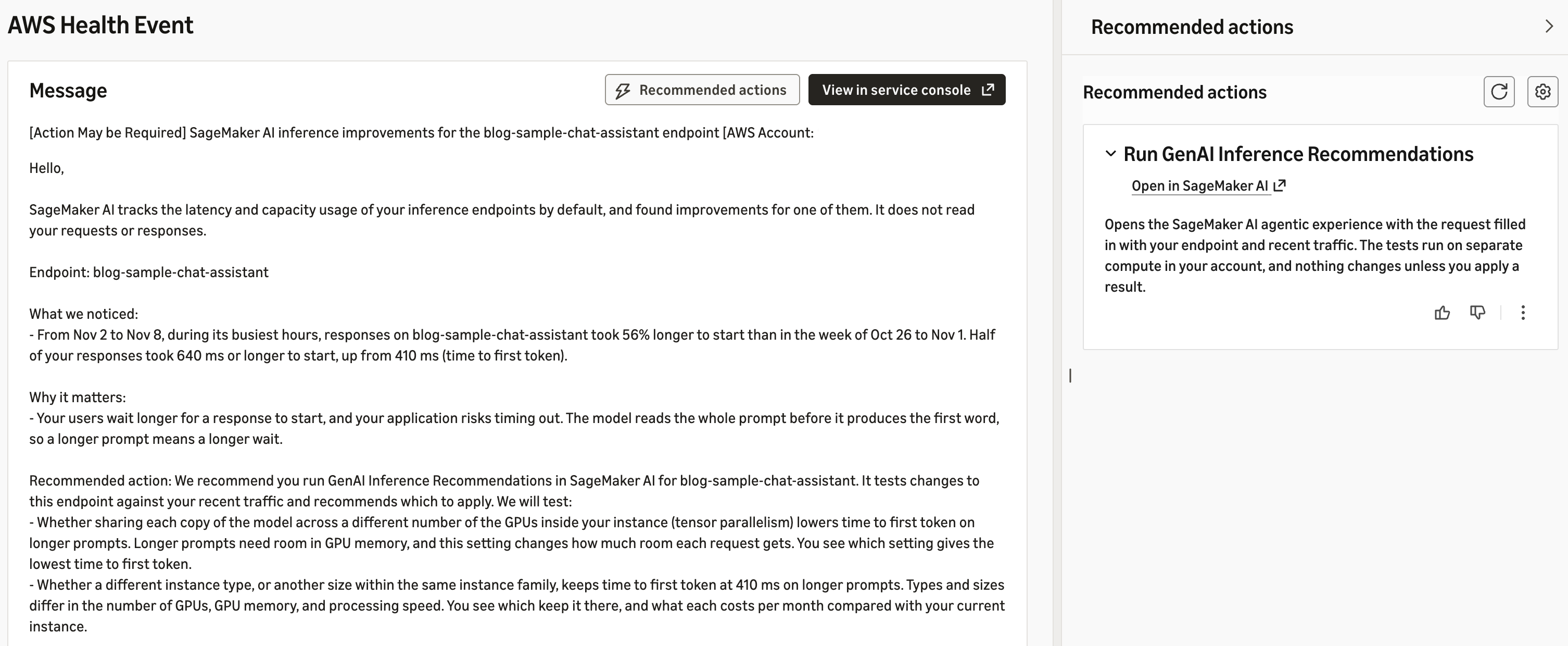
Determine 1: AWS Well being occasion for a latency drift discovering, with a hyperlink to run inference suggestions in SageMaker AI
State of affairs 2: Activate an optimization your site visitors can profit from
A platform crew hosts an inside code-completion mannequin on a SageMaker AI endpoint. They deployed it with default serving settings and by no means revisited them. The mannequin and serving container assist speculative decoding, a way for sooner responses, nevertheless it isn’t enabled. SageMaker AI flags this as a possibility. Whether or not it helps is determined by the endpoint’s site visitors, equivalent to what number of requests run concurrently and the way lengthy prompts and responses are. The notification recommends operating inference suggestions, which benchmarks speculative decoding towards the endpoint’s latest site visitors and reveals whether or not it’s value turning on.
- Notification: AWS Well being studies {that a} approach designed to make responses sooner is supported however not enabled.
- Studio session: The agentic expertise opens with the endpoint configuration loaded.
- Benchmark: The session compares the present configuration with speculative decoding enabled. Outcomes might differ at peak in comparison with off-peak site visitors.
- Choice: If the achieve holds on the site visitors that issues, the crew applies it. In any other case, they preserve the present configuration.
The next screenshot reveals an AWS Well being occasion for a speculative decoding discovering. The message studies that the mannequin and serving container assist speculative decoding, however the endpoint doesn’t use it. The Really useful actions pane hyperlinks to SageMaker AI to run inference suggestions.
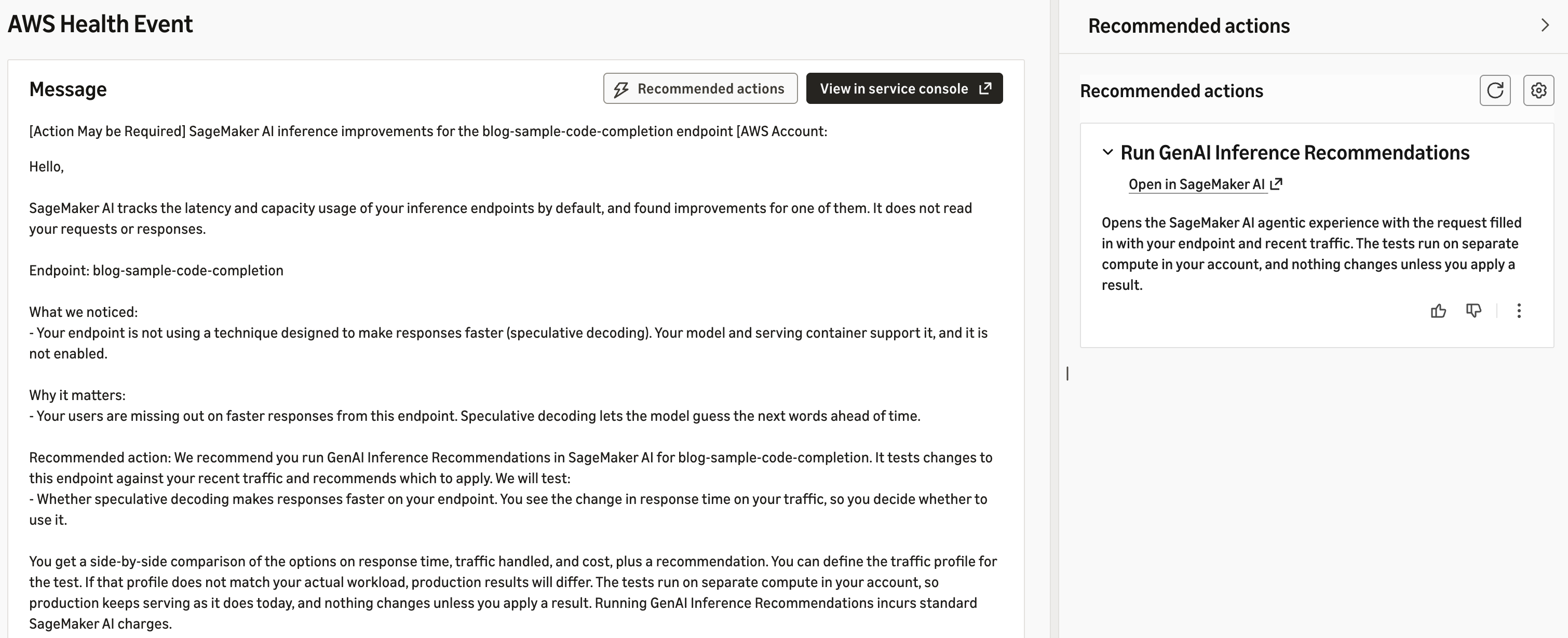
Determine 2: AWS Well being occasion for a speculative decoding discovering, with a hyperlink to run inference suggestions in SageMaker AI
The notification explains that speculative decoding could make responses sooner, and that the benchmark compares response time with and with out it on the endpoint’s latest site visitors.
State of affairs 3: Proper-size underutilized GPUs
A summarization endpoint was sized for a launch that drew a fraction of the deliberate viewers, so its GPUs sit largely idle for per week. This state of affairs additionally reveals a case the place the suitable determination could also be to make no change in any respect.
- Notification: AWS Well being studies that the endpoint paid for GPU capability that largely went unused.
- Studio session: The agentic expertise opens with the endpoint and its noticed peak site visitors.
- Benchmark: The session checks cheaper occasion sorts and smaller sizes at noticed peak site visitors.
- Choice: The crew weighs the month-to-month financial savings towards the headroom they need for deliberate progress and will resolve to maintain the present measurement.
The next screenshot reveals an AWS Well being occasion for an unused capability discovering. The message studies that for a lot of the week, even the endpoint’s busiest GPU used 12 p.c or much less of its capability. The Really useful actions pane hyperlinks to SageMaker AI to run inference suggestions.
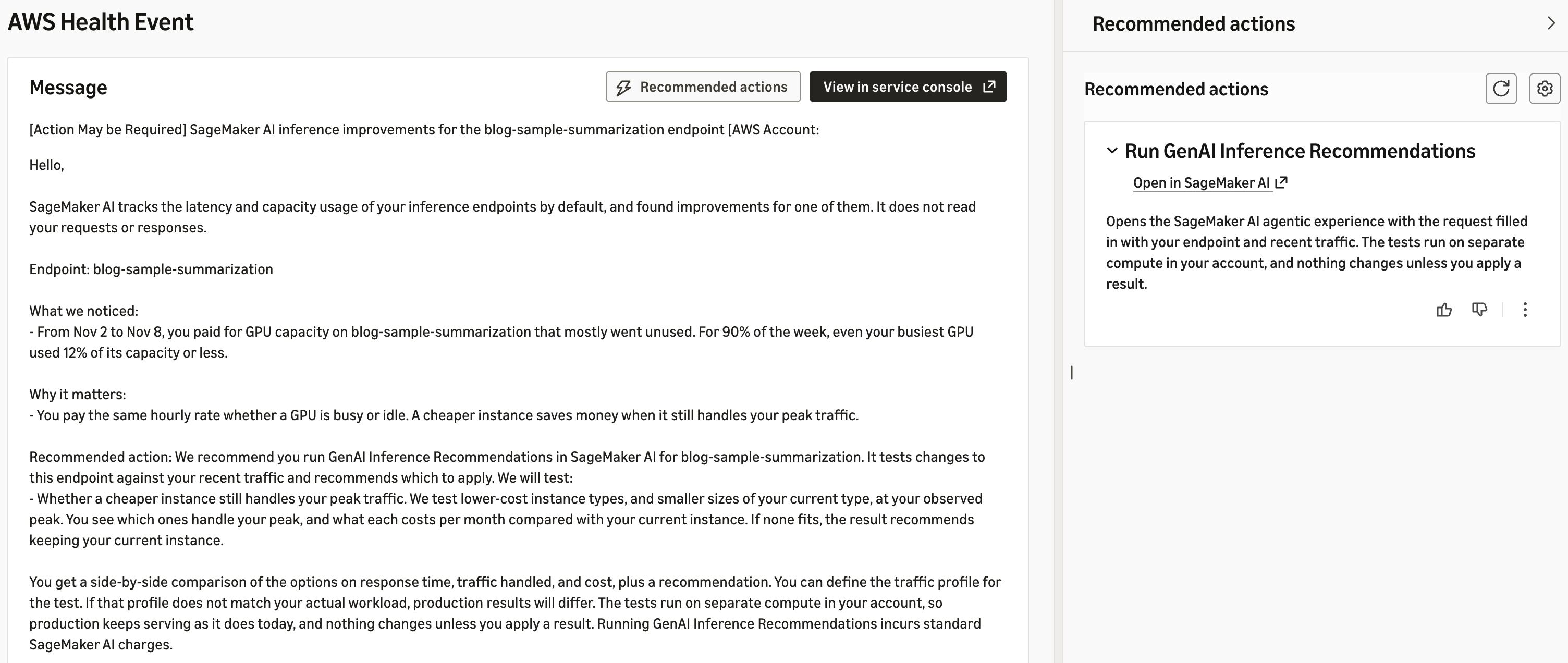
Determine 3: AWS Well being occasion for an unused capability discovering, with a hyperlink to run inference suggestions in SageMaker AI
You possibly can select Open in SageMaker AI from the advisable actions as proven within the screenshot above to use or dismiss a advice. Lets stroll by this in subsequent part.
Apply or dismiss a advice
You keep in management all through, and nothing deploys robotically. If you select Open in SageMaker AI from a notification’s advisable actions, Amazon SageMaker Studio opens a JupyterLab area and reveals the immediate that may run within the agentic chat. The next screenshot reveals the immediate for a latency drift discovering on an endpoint that additionally runs an older vLLM serving container:
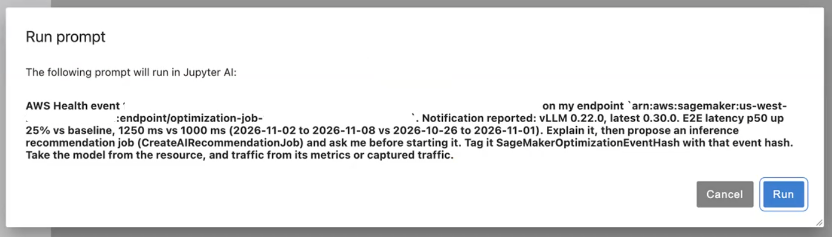
If you select Run, the agentic expertise opens in a chat panel in JupyterLab area in SageMaker Studio. It summarizes the discovering in plain language, restates what you requested it to do, and checks with you earlier than it takes any motion. The next screenshot reveals the agent summarizing the findings and asking to proceed:
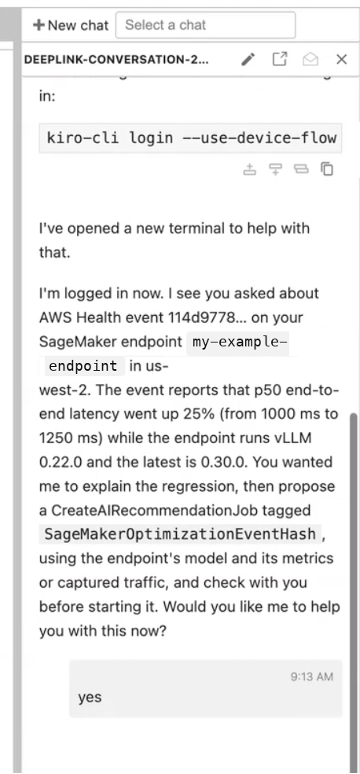
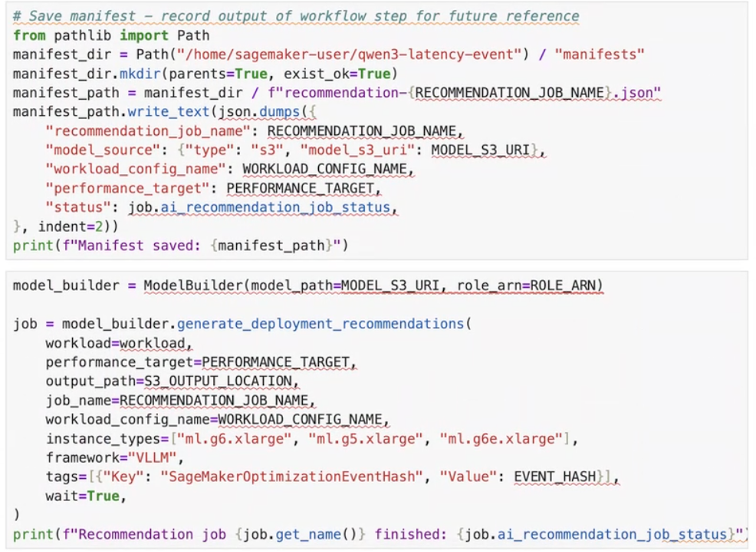
After you verify, the agent generates a pocket book that creates an inference advice job for the endpoint. The pocket book makes use of the SageMaker Python SDK, takes the mannequin from the endpoint and the site visitors profile from its metrics, and tags the job with the AWS Well being occasion so you’ll be able to hint the outcomes again to the discovering. Every step is a separate pocket book cell, so you’ll be able to assessment or edit it earlier than you run it.
The next screenshot reveals the pocket book cells that document the job particulars and begin a advice job throughout three candidate occasion sorts.
When the job completes, you’ll be able to examine your present configuration with the alternate options on response time, throughput, and value. When you find yourself able to act on a benchmarked end result, we advocate a secure rollout sample:
- Assessment the proposed change earlier than making use of it, together with the configuration distinction and the benchmarked latency, throughput, and value.
- Apply to 1 manufacturing variant first and preserve the present configuration out there for rollback.
- Holding or dismissing a discovering is a standard final result. The notification stays in your AWS Well being occasion historical past.
Handle monitoring and notifications
You possibly can handle monitoring and the way you’re notified:
- Handle the way you obtain notifications within the AWS Person Notifications console.
- Optionally, schedule recurring suggestions, for instance month-to-month.
What’s and isn’t collected: Monitoring reads aggregated latency and capability telemetry on the endpoint stage. It doesn’t learn your request or response content material, and it carries no GPU price.
Opting out of monitoring: If you happen to don’t need SageMaker AI to watch an endpoint, set the OPT_OUT_TRACKING setting variable, with a price of your selection, on the mannequin’s container. You set it within the Surroundings map if you name CreateModel, both on PrimaryContainer or on one other container within the mannequin.
If a container on the endpoint carries this variable, SageMaker AI collects no monitoring telemetry for that endpoint, together with engine metrics, GPU metrics, and startup configuration particulars. Because of this, it sends no notifications for that endpoint.
Clear up
To keep away from ongoing costs, clear up the sources you created whereas following this publish:
- Delete any check endpoints or sources you created for the walkthrough.
- Take away benchmark artifacts in Amazon Easy Storage Service (Amazon S3), if relevant.
- Revert any check configuration adjustments you utilized.
Conclusion
With SageMaker AI inference suggestions now monitoring your endpoints robotically, optimization strikes from a point-in-time snapshot to an ongoing sign.
Your endpoints preserve telling you after they have drifted, when they’re lacking an enchancment, or when they’re paying for idle capability. A single choice takes you to a benchmarked, side-by-side determination that you just management.
For extra data on easy methods to get began, go to Amazon SageMaker AI and see the Amazon SageMaker AI documentation.
In regards to the authors